Example
English Pronunciation: Linking and Stress
18 min practised
How linking and sentence stress work. Revisit: consonant-to-vowel links and stress in questions.
You shouldn't have to search through an hour-long lesson to find the same two minutes again. Write a short note about the whole video, then mark the passages you want to return to as named loops. The card note answers “Why did I save this lesson?”; each loop name answers “Where do I go back?”
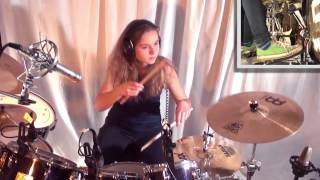
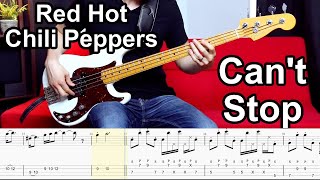
In the example below, an English pronunciation lesson has a note about linking and sentence stress, with two points to revisit. A music-theory lesson could use the same approach for a difficult rhythmic entrance or a change of accent. The note sits with the video, so you can see your reason for keeping it before opening the player.
In Practice mode, drag the start and end of a loop around the explanation. Leave enough context before the difficult point and enough time for the teacher to finish it. Save the range with a recognisable name such as “Linking sounds” or “Question stress”. Next time, choose that saved loop to replay or slow the passage without searching for its timestamp.
You can save several named ranges for one video. Start with the few places you really need to revisit; if an edge is off, adjust it when you listen again. For the controls themselves, see looping and slowing a YouTube section.
The free-text note belongs to the whole video or audio card. Use it for the lesson's topic, a question you still have, or what you plan to review next. A saved loop has its own name and time range. You cannot currently attach a separate long-form comment to each loop, and the app does not automatically transcribe, summarise or identify the lesson's key points. It keeps the words and ranges you choose.
After adding a video to your library with a free account, tap the text of an existing note to edit it. The pencil also appears on desktop hover or in Edit mode. If the card has no note, choose “Add a note”; on a touch device, enter Edit mode first. Your card note stays with your own library entry; sharing a YouTube passage does not publish that private note.
Your own lesson recording, rehearsal audio or filmed demonstration can go in “My Files”. Give its card a whole-file note and save important time ranges as named loops. You can create several local folders—perhaps “Lessons” and “Rehearsals”—choose one when adding a file, and move files as your library changes. Uploading a file into My Files on this device is free with a free account; basic notes, folders, looping and slower playback do not require Pro. See practising with your own audio and video.
The original file stays on the device and browser where you added it by default. A free account can sync library information and practice records, but seeing an entry on another device does not mean that device has the original media. Pro cloud sync can make your own file available across your devices. It does not turn it into a link you can send to someone else.
To send “Linking sounds” to a classmate, you can share the section currently selected on an embeddable YouTube video, or choose a saved loop. You may set their starting speed and write a message for the recipient. That share message is separate from the note on your card; the recipient does not receive your library or private note. Creating a share requires a free account with a verified email address.
Your own uploaded audio and video files cannot be shared through this feature, even if you use Pro cloud sync. Sharing a section here is for eligible YouTube videos only. See how to share a YouTube practice loop.
You can name each saved range, but the free-text card note belongs to the whole video or audio file. When sharing an eligible YouTube section, you can write a separate message for its recipient.
Not through the section-sharing feature. You can organise your own files, add notes and optionally sync the original media between your own devices with Pro, but that is not public file sharing.
Find an embeddable teaching video—or use an audio or video file you have the right to use. Name one passage worth revisiting, then add a short note to its library card so you know what to return to next time.