Share the YouTube section you're practising
A whole video link does not tell someone which few seconds to practise. If a student needs to work on a position shift, a short rhythm or one phrase, you can send the chosen loop with a starting playback speed and an optional note. Send the link directly, or put its QR code on a lesson sheet so the student can scan it and open that section.
This does not copy or re-host the video, and it does not share your practice record. Playback remains in YouTube's embedded player, so the video must permit embedding.
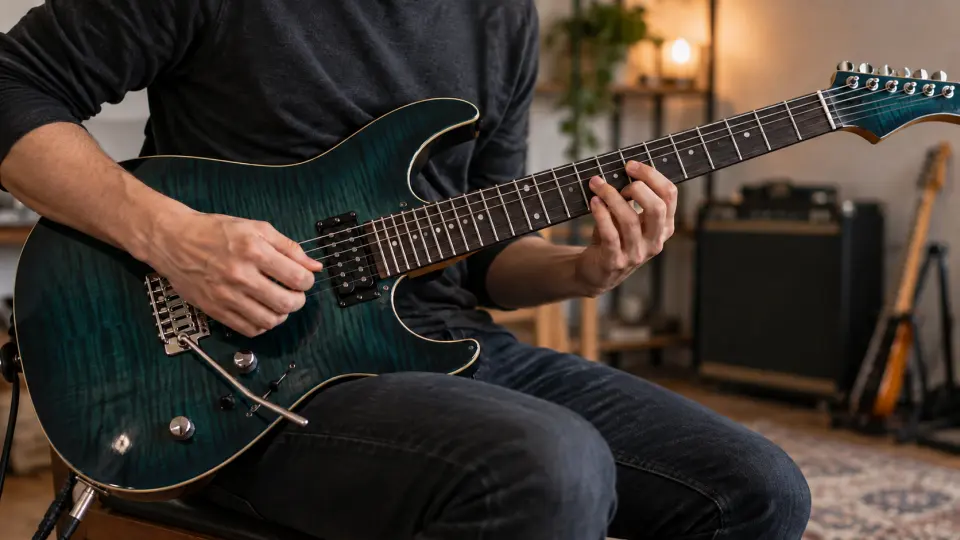
For example, a teacher demonstrates a guitar phrase but wants the student to practise one position shift. Frame those seconds and add a note: “Loop this five times at 0.7×, then raise the speed gradually.” Scanning the QR code opens that practice section.

From a video card to a practice link
- Choose the section. Set the loop's start and end in Practice mode. In the share panel, you can include one or more saved loops, or include the current unsaved loop. If the boundaries are hard to place, see how to loop and slow a YouTube section.
- Set a useful starting speed. You can choose a speed for each included loop, or leave it unspecified so the recipient can choose. Add a short note if it helps explain the exercise.
- Choose who can open it. Create a public link for anyone who has it, or send the share to selected friends' accounts. Only the public link has a QR code for a handout or classroom screen.
Creating a share requires a free account with a verified email address. Someone opening a public link does not need to register or pay to practise with the shared loop and speed. Their practice time belongs to their own record, not yours.
The link stores a practice entry point, not a copy of the video. If the original is removed, blocks embedding or is unavailable in the recipient's region, the link cannot bypass YouTube's playback restrictions. Before sending it to a class, open it yourself and check the video and section.
Check three things before sending
Is it the passage you meant to teach? The share panel lists the loops you included. If the exercise is the chorus, leave out the intro. You can create separate links for different passages.
Is the speed a starting point, not a target? A setting such as 0.7× gives the recipient a place to begin; they can adjust it after opening the link. Use the note for a concrete instruction, such as how many repetitions to try before increasing the speed.
Who may receive it? “Anyone with the link” does not limit it to the person you sent it to. Choose “Specific friends” if only those accounts should be able to open it. The recipient sees your sender name, the video, selected loops, their starting speeds and your note—not your whole library or practice history.
Frequently asked questions
Does the recipient need an account or Pro?
No. A public link can be opened as a guest, provided the YouTube video plays in the embedded player. The sender needs a free account with a verified email address to create the share.
Can I share the video without a loop?
Yes. If no loop is selected, the panel tells you that you are sending the video link alone. Select a loop first if you want the recipient to land on a specific passage.
Will the recipient see my practice record?
No. The recipient sees your sender name, the video, selected loops, starting speeds and any note you wrote, but not your practice record. To show what you have already practised, share a practice recap image instead.
Can I use this for a local file?
This sharing flow is for YouTube videos that play in the embedded player. It does not send a local recording or video file to someone else.
Choose an embeddable YouTube video in your library, frame the short passage and open Share from its video card. Verify your email on a free account to create a practice link or QR code.