Practice with your own audio and video, one passage at a time
Your practice material needn't be on YouTube. A recording of your playing, a rehearsal, or a lesson demonstration you have permission to use can go into My Files. Open it, frame a difficult passage, slow it down and loop it. Tomorrow, return to the same piece. Uploading your own audio or video to My Files is free with a free account; by default, the file stays on that device.
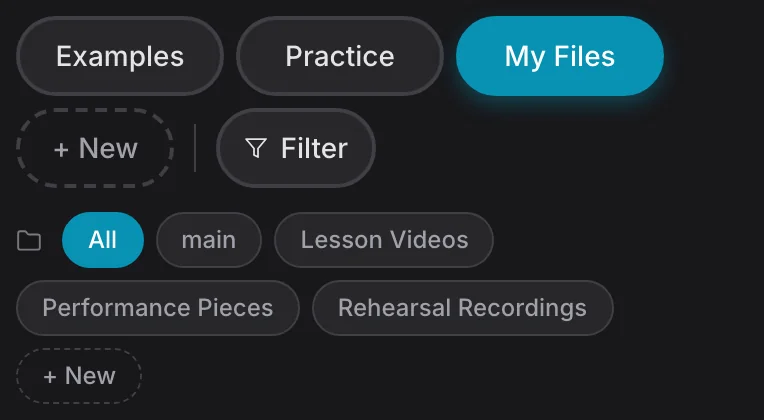
Start in My Files
In the media library, select My Files. Create separate local folders for material such as rehearsals and lessons, then add the relevant audio or video. You can add multiple files at once. The add-file interface gives the current size limit and supported formats; playback also depends on whether your browser can decode the file. Add only material you're permitted to use.
Audio lets you focus on rhythm, tone and phrasing in a rehearsal recording. Video also lets you check hand position, body movement or a teacher's demonstration. Both use the same Practice mode controls. You don't need to cut a long recording into many files just to loop a section.
Unlike embedded YouTube playback, the app can process the sound of a local file directly. On supported desktop browsers, slowed playback can use Signalsmith Stretch to preserve pitch; Safari and mobile use the browser's native pitch preservation. A clear source recording helps when listening for details at lower speeds, but the result still depends on file quality, speed and device.
For local audio added with a free account, Practice mode may also show a waveform when the browser can decode and analyse the file on the device. It helps you place the loop handles. This analysis needs no Pro subscription. If a file is too large or analysis cannot finish, you can still play and loop it, but a waveform is not guaranteed. Local video and YouTube video do not gain a waveform from this feature.
If you have a full rehearsal recording, choose the passage you most want to improve today. Once it feels steady, extend the loop in both directions.
Turn a long recording into a workable passage
- Listen once and locate the problem. Notice the notes or beat leading into it, not just the instant when things go wrong.
- Set the start and end. Keep the transition into and out of the passage inside the loop. If you get stuck at the same point, narrow the range while retaining its lead-in.
- Slow down to a speed you can follow, then repeat. Check the notes and rhythm before raising the speed. Return to the original speed eventually to see whether the passage connects in context.
The same approach works for a longer lesson video you're permitted to use. You needn't seek the same point from the beginning or upload an edited copy. For a more deliberate speed progression, see how to build playing speed.
Your file, library entry and practice record are different things
The original file stays on the device and in the browser where you added it by default. A free account lets you add files and sync library information and practice records. Seeing an entry on another device does not mean that device has the original audio or video. Don't treat a browser-stored file as your only backup.
Practice mode records elapsed playback time and the speed setting under that piece. Changing the loop range later does not turn it into a different piece. If you need the original file playable across devices, Pro offers cloud sync. Looping, slowing and viewing practice records for a file on this device do not require Pro.
Cloud file sync and stem separation are separate Pro features, not prerequisites for adding a file or basic practice. Stem separation works with files you're permitted to upload, not YouTube videos. If an embedded YouTube video plays here, you can instead practise directly from its link without downloading it.
Frequently asked questions
Can I add my own audio or video without paying?
Yes, with a free account. The add-file screen shows the supported formats and per-file size limit. Playing a large file also depends on your browser and the space available on your device.
Will the file appear on my new phone automatically?
Your library information and practice records can sync with a free account, but the original file stays on the device where you added it by default. To play that file on another device, use Pro cloud sync or provide the file on the new device.
Can I add audio without video?
Yes. The add-file screen accepts supported audio and video formats. Audio is often enough for rhythm and phrasing; video helps when you also want to inspect movement.
Does practice with a local file count in my records?
Yes. Elapsed playback time in Practice mode is recorded under the corresponding piece. Slowing the file does not convert that time into the recording's original duration.
Choose a recording or video you're permitted to use and add it to My Files. Find one small passage, frame it, slow it down, and practise from a speed you can manage steadily.